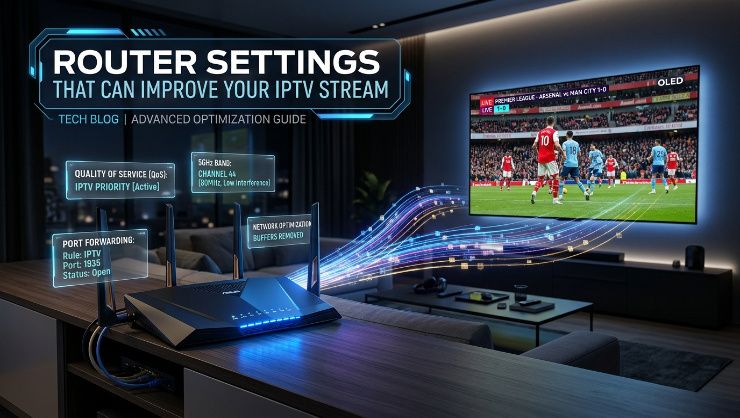
When IPTV streams poorly, most people immediately suspect their internet provider or the IPTV service itself. The router sitting in the corner of the room often gets overlooked, despite playing a significant role in how smoothly your streams actually perform. A few specific settings adjustments can meaningfully improve your experience without needing to change your internet plan or switch providers.
Quality of Service Settings
Most modern routers include a Quality of Service, or QoS, feature that lets you prioritize certain types of traffic over others on your network. If your router supports this, setting your streaming device as a priority can help maintain stream quality even when other devices on your network are simultaneously downloading files or using bandwidth heavy applications.
Access this setting through your router's admin panel, typically reachable by typing your router's IP address into a browser. The exact location of QoS settings varies between router brands, but it's usually found under advanced settings or traffic management.
Wireless Band Selection
If your router supports both 2.4GHz and 5GHz bands, using 5GHz for your streaming device generally provides better performance, assuming you're within reasonable range of the router. The 5GHz band offers higher speeds and less interference from other household devices, though the range is shorter than 2.4GHz. For a streaming device in the same room or nearby, 5GHz is usually the better choice if available.
Channel Congestion on 2.4GHz
If you're stuck using 2.4GHz, either due to distance from the router or device limitations, checking for channel congestion can help. In areas with many nearby WiFi networks, like apartment buildings, multiple routers competing for the same channels can cause interference. Most router admin panels let you manually select a less congested channel rather than relying on automatic selection, which sometimes doesn't pick the optimal option.
Firmware Updates
Router manufacturers periodically release firmware updates that can include performance improvements and bug fixes relevant to streaming stability. Check your router's admin panel for available firmware updates, and apply them if your router hasn't been updated in a while. This is an easy step that gets overlooked simply because routers, once set up, tend to be ignored until something goes wrong.
Reducing Network Congestion During Streaming
If multiple devices in your household are active on the network during your streaming session, particularly anything doing large downloads or heavy uploads, this competes for bandwidth with your stream. Pausing unnecessary downloads or uploads during important viewing sessions, particularly live sports, can meaningfully improve stream stability without needing any settings changes at all.
Router Placement
Physical placement affects wireless signal quality more than people often expect. A router placed in a closet, behind furniture, or in a corner far from your streaming device delivers a noticeably weaker signal than one placed centrally and elevated. If repositioning your router isn't practical, a WiFi extender placed strategically between the router and your streaming device can help bridge the gap.
When to Use Ethernet Instead
For any streaming device where stability matters most, particularly if you've tried wireless optimization without success, a wired ethernet connection eliminates most of these wireless variables entirely. Many Smart TVs, Firestick devices with the right adapter, and most streaming boxes support ethernet, and the improvement in consistency is often immediately noticeable compared to even a well optimized wireless setup.
When Router Adjustments Won't Fix the Problem
If you've optimized everything on your network side and buffering persists specifically during high demand periods like live sports, the issue has likely shifted to your IPTV provider's server capacity rather than anything happening on your home network. No router setting compensates for a provider that simply doesn't have enough server capacity to handle peak subscriber load.
A Provider Built to Complement a Properly Configured Network
PrimeTV's infrastructure is designed to deliver consistent stream quality during peak demand, meaning a properly optimized home network paired with this kind of server side reliability gives you the best possible combination for smooth streaming, particularly during live sports. Start a PrimeTV free trial after optimizing your router settings, and test during a live event to see the full benefit of getting both sides of the equation right.
The Bottom Line
Router settings genuinely affect IPTV stream quality, and a few adjustments, prioritizing your streaming device, choosing the right wireless band, updating firmware, and considering ethernet for critical devices, can meaningfully improve your experience. If problems persist after optimizing everything on your end, the remaining issue is almost certainly on the provider's side rather than your home network.