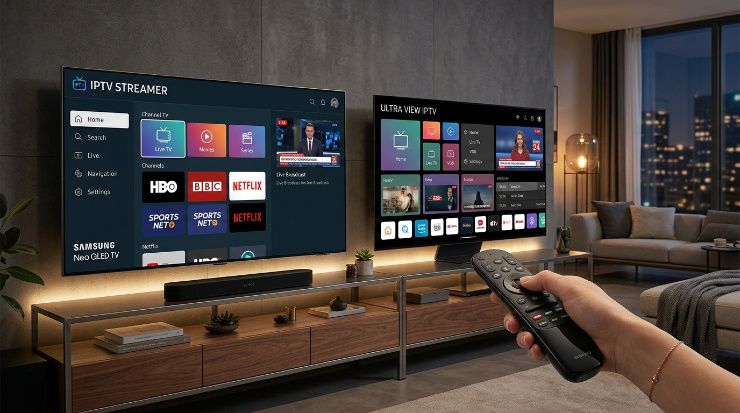
Setting up IPTV directly on a Samsung or LG Smart TV is appealing because it removes the need for an extra streaming device entirely. The process works a little differently than installing an app on a Firestick though, and the app ecosystems on Samsung's Tizen and LG's WebOS platforms have their own quirks worth understanding before you start.
Why Smart TV Setup Differs From Other Devices
Samsung and LG run their own proprietary operating systems, Tizen and WebOS respectively, rather than Android, which is what powers Firestick and most Android TV boxes. This means popular IPTV apps designed for Android, like TiviMate or IPTV Smarters Pro, aren't directly available on Samsung or LG's app stores in most cases. Instead, you'll typically rely on either a browser based solution, a compatible app available specifically for Tizen or WebOS, or screen mirroring from another device.
Option One: Using a Compatible App From the TV's App Store
Both Samsung and LG app stores carry a limited selection of IPTV compatible apps, though the selection is noticeably smaller than what's available for Android devices. Search your TV's app store directly for IPTV Smarters or similar terms to see what's currently available for your specific TV model and software version, since availability changes over time and varies between regions.
If a compatible app is available, installation works the same way as any other Smart TV app, search for it, install, then open it and enter your IPTV credentials, either an M3U playlist URL or Xtream Codes login details that your provider sends after subscribing.
Option Two: Browser Based IPTV Players
Both Samsung and LG TVs include a built in web browser that can sometimes run browser based IPTV players. This approach tends to be less stable than a dedicated app, with more frequent buffering and a less polished interface, but it's a workable fallback if no suitable app is available for your specific TV model.
Option Three: Casting or Mirroring From Another Device
If neither a native app nor a browser solution works well on your specific TV, casting from a phone, tablet, or computer running a proper IPTV app is a reliable workaround. Both Samsung and LG support standard casting protocols, so streaming from a device running TiviMate or IPTV Smarters Pro to your TV screen gives you the full functionality of those apps even though they're not installed directly on the TV itself.
Considering an External Streaming Device Instead
Given the more limited app ecosystem on Samsung and LG TVs specifically for IPTV, a lot of users find that connecting an affordable streaming device like a Firestick or Android TV box to an HDMI port provides a noticeably smoother and more reliable experience than trying to run IPTV natively through the TV's own operating system. This adds a small upfront cost but removes most of the platform specific limitations entirely.
Common Issues With Smart TV IPTV Setups
If your chosen app crashes frequently, this is sometimes related to the TV's processing power rather than the IPTV service itself, particularly on older Smart TV models with less powerful hardware. Clearing the app's cache through your TV's settings sometimes resolves stability issues, though persistent crashes on older hardware may simply reflect the limitations of running resource intensive IPTV apps on TVs not originally designed with that use case in mind.
If channels load but buffer constantly, test the same channel through a different method, such as casting from a phone, to determine whether the issue is specific to the TV's app performance or related to your IPTV provider's server capacity during that particular time.
What to Confirm Before Choosing an IPTV Provider for Smart TV Use
If Smart TV is your primary or only viewing device, confirm with your IPTV provider what setup methods they specifically support and recommend for Samsung and LG TVs before subscribing. Providers with clear setup documentation for these platforms specifically tend to result in a smoother experience than providers that only document Firestick and Android setups in detail.
How PrimeTV Supports Smart TV Users
PrimeTV provides setup guidance for Samsung and LG Smart TVs alongside the more common Firestick and Android TV setups, including recommended app options and casting instructions for TVs where a native app isn't available. The server infrastructure behind the service is built to handle peak demand regardless of which device or app you're using to access it.
Check the available PrimeTV plans and reach out through WhatsApp support if you need help identifying the best setup method for your specific Smart TV model before or during your free trial.
Final Thoughts
IPTV on Samsung and LG Smart TVs is entirely workable, but the setup process and available options differ meaningfully from Android based devices. Understanding these differences upfront, and considering whether an external streaming device might actually be the smoother path, helps you avoid frustration before you even get to testing the IPTV service itself.