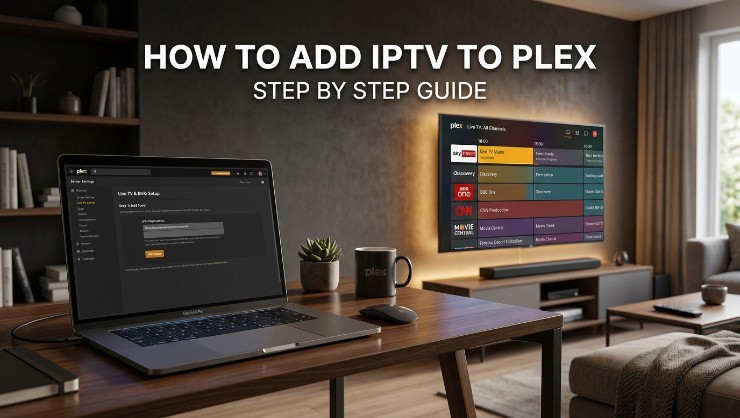
Plex has built a strong reputation as a media server platform, and a lot of users want to bring their IPTV channels into the same interface they already use for their personal media library. The setup is slightly more involved than dedicated IPTV apps like TiviMate, but it's entirely doable and results in a clean, unified viewing experience once it's running.
What You Need Before Starting
You'll need a Plex account, the Plex media server software installed on a device that stays on, such as a computer or NAS, and your IPTV subscription details, typically an M3U playlist URL. If you don't have an active IPTV subscription yet, get set up with PrimeTV first, since the M3U link your provider sends is what makes this entire setup possible.
Step One: Install the Plex DVR Add On
Plex requires its Live TV and DVR feature to bring in IPTV channels through an M3U playlist. This feature is built into modern versions of Plex, so make sure your Plex Media Server software is updated to the latest version before proceeding. Older versions may not include full support for custom M3U sources.
Step Two: Set Up a Tuner With Your M3U Playlist
Open Plex Media Server settings and navigate to the Live TV and DVR section. Select the option to set up a new tuner. Rather than choosing a physical tuner device, look for the option to add a custom channel list or HDHomeRun emulator depending on your Plex version, since this is typically how M3U based IPTV gets integrated.
You'll be prompted to enter your M3U playlist URL here. Paste it exactly as provided by your IPTV provider, since any small error in the URL will prevent the channel list from loading correctly.
Step Three: Add an EPG Source
For the programme guide to display properly within Plex, you'll typically need to provide an XMLTV EPG URL separately from your M3U playlist link. Not all providers include this by default, so check your provider's documentation or support channel for the correct EPG URL to use. Without this, your channels will load but Plex won't display what's currently airing or coming up.
Step Four: Map Channels and Complete Setup
Once your M3U and EPG sources are added, Plex will attempt to automatically match channels to their guide data. This matching isn't always perfect, particularly with smaller or regional channels, so you may need to manually adjust a few channel mappings to make sure the right programme data lines up with the right channel.
After mapping is complete, save your settings and Plex will finish indexing your channel list. This process can take a few minutes depending on how many channels are included in your subscription.
Step Five: Test Your Channels
Once setup finishes, navigate to the Live TV section within Plex and start browsing your channels. Test a handful of channels across different categories to confirm streams load properly and the guide data matches what's actually airing. If a channel doesn't load, double check the corresponding stream URL within your M3U playlist, since occasional dead links are common even with quality providers.
Common Issues With IPTV on Plex
If channels load slowly or buffer frequently, this is more often related to your IPTV provider's server capacity than to Plex itself, particularly during peak viewing hours. Test the same channel at a quieter time of day for comparison.
If the EPG data doesn't match what's playing, double check that you're using the correct XMLTV URL for your specific provider, since using a generic or mismatched EPG source is a common cause of guide data appearing incorrect.
If Plex fails to recognize your M3U file at all, confirm the URL is complete and hasn't been altered when copying it. Even a missing character will cause the entire playlist to fail loading.
Why the IPTV Provider Behind Your Plex Setup Matters
Plex is simply the interface, the actual viewing experience depends entirely on the quality of the IPTV service feeding it. A clean Plex setup connected to an unreliable provider still results in buffering and missing channels, particularly during high demand periods like live sports.
PrimeTV provides M3U playlists and EPG data that work directly with Plex's Live TV setup, backed by server infrastructure built to handle peak demand without the typical reliability issues that affect budget providers. Check the available PrimeTV plans and get your M3U and EPG details to complete this Plex setup with a service built to actually hold up under real use.
Final Thoughts
Setting up IPTV on Plex takes more steps than a dedicated IPTV app, but the payoff is a single unified interface for both your personal media library and live channels. Follow the steps above carefully, particularly around the M3U and EPG URLs, and you'll have a clean working setup that makes daily use significantly more convenient.